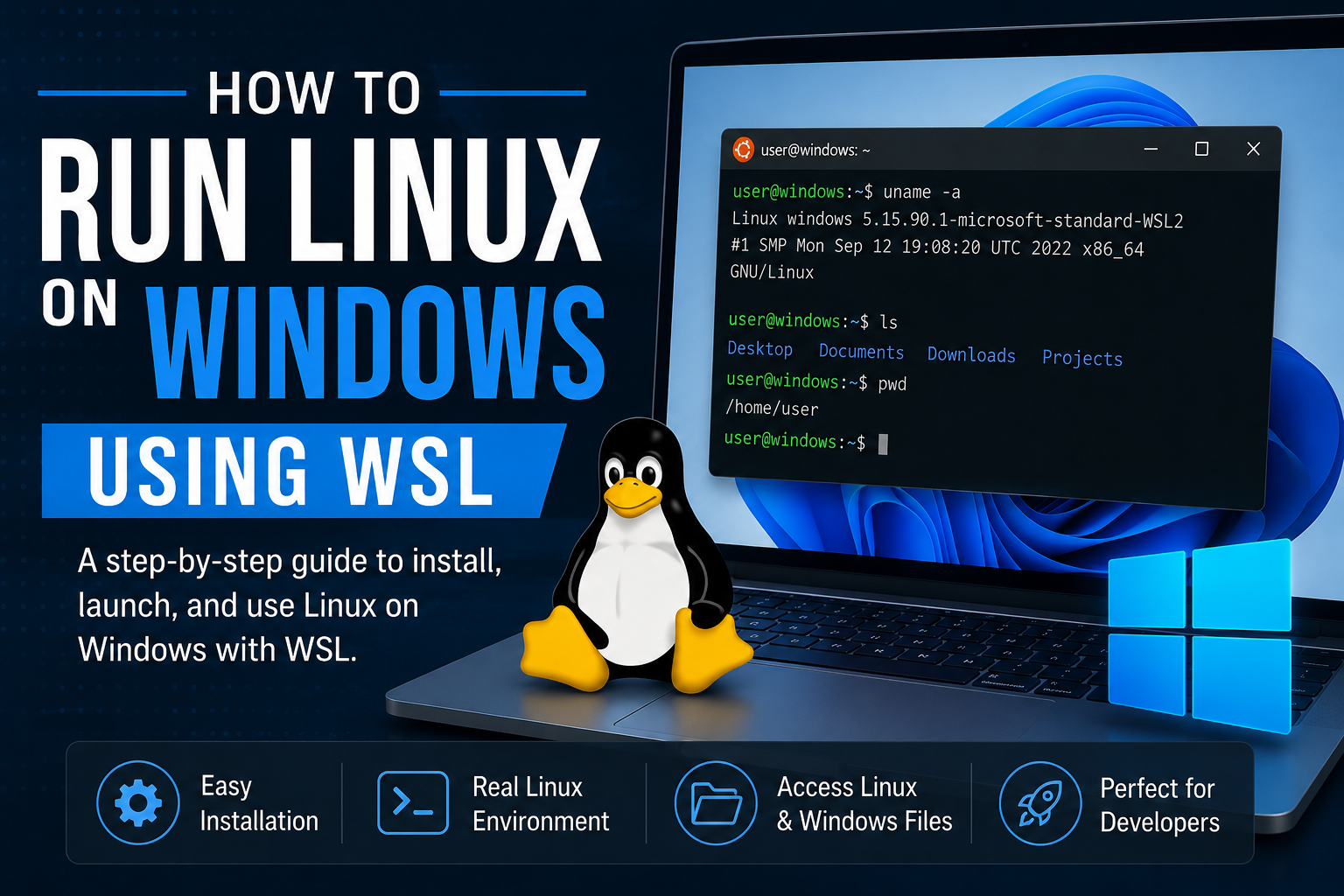
How to Run Linux on Windows Using WSL
If you want to learn Linux but already use Microsoft Windows, one of the easiest and most powerful options available today is the Windows Subsystem for Linux (WSL).
WSL allows you to run a real Linux environment directly inside Windows without needing a virtual machine or dual boot setup. This makes it an excellent choice for students, developers, IT professionals, and anyone beginning their Linux journey.
In this guide, you will learn:
- What WSL is
- Why WSL is useful
- How to install WSL
- How to launch Linux on Windows
- Basic Linux commands to test your setup
Whether you are learning Linux for cloud computing, programming, DevOps, or cybersecurity, WSL provides a fast and beginner-friendly way to get started.
What Is Windows Subsystem for Linux (WSL)?
The Windows Subsystem for Linux is a feature built into Windows 10 and Windows 11 that allows you to run Linux directly within Windows.
Instead of installing Linux on a separate computer or using a virtual machine, WSL creates a lightweight Linux environment that integrates with your existing Windows system.
With WSL, you can:
- Run Linux commands
- Install Linux software
- Use programming tools
- Work with Bash shell scripts
- Practice Linux administration
- Access Linux development environments
Microsoft designed WSL specifically for developers and IT professionals who need Linux tools while still using Windows as their primary operating system.
Why Use Linux on Windows?
Running Linux on Windows using WSL offers several advantages.
Easy Installation
Unlike traditional Linux installations, WSL requires only a few commands to get started.
You do not need to:
- Partition your hard drive
- Replace Windows
- Configure complex virtualization software
Lightweight Performance
WSL uses fewer system resources than a traditional virtual machine.
This means:
- Faster startup times
- Lower memory usage
- Better overall performance
Great for Learning Linux
WSL is ideal for beginners because you can safely practice Linux commands without modifying your Windows installation.
You can experiment with:
- Filesystems
- Bash commands
- Programming languages
- Linux package management
Excellent for Developers
Many development tools work best in Linux environments.
WSL is commonly used for:
- Python development
- Docker
- Git
- Node.js
- Kubernetes
- Cloud development
- DevOps automation
Requirements for WSL
To use WSL, you need:
- Windows 10 or Windows 11
- Administrator access
- Internet connection
Most modern Windows systems support WSL automatically.
How to Install WSL
Installing WSL is surprisingly simple.
Step 1: Open PowerShell as Administrator
Click the Start menu and search for:
PowerShell
Right-click it and choose:
Run as Administrator
Step 2: Install WSL
Run the following command:
wsl --install
This command:
- Enables WSL
- Downloads the Linux kernel
- Installs Ubuntu by default
- Configures the environment automatically
The installation may take several minutes.
Step 3: Restart Your Computer
After installation completes, restart Windows.
This finalizes the WSL configuration.
Launching Linux on Windows
After restarting, open a terminal window and type:
wsl
You should see a Linux command prompt similar to:
user@computer:~$
Congratulations — Linux is now running on your Windows system.
Creating Your Linux User Account
The first time Ubuntu launches, it will ask you to create:
- A username
- A password
Example:
Enter new UNIX username:
Choose a simple username you will remember.
Testing Your Linux Installation
Now that Linux is running, try a few basic commands.
Check Your Linux Version
uname -a
This displays information about your Linux kernel and system.
Display Current Directory
pwd
List Files
ls
Update Your Linux System
sudo apt update
sudo apt upgrade
These commands refresh package information and install updates.
Understanding the Linux Filesystem in WSL
WSL creates a Linux filesystem inside Windows.
Your Linux home directory is typically located at:
/home/yourusername
You can also access Windows files from Linux.
For example:
cd /mnt/c
This gives you access to your Windows C: drive from Linux.
Installing Software in WSL
Ubuntu uses the apt package manager.
To install software:
sudo apt install nano
Example tools you may want to install:
- Git
- Python
- Node.js
- Docker tools
- Curl
- Vim
WSL vs Virtual Machines
Many beginners ask whether they should use WSL or a virtual machine like VirtualBox.
WSL Advantages
- Faster
- Easier setup
- Lower resource usage
- Better Windows integration
Virtual Machine Advantages
- Full Linux desktop environment
- Better for advanced system administration practice
- More isolated environment
For most beginners, WSL is the easiest place to start.
Common Uses for WSL
WSL is widely used in modern technology careers.
Software Development
Developers use WSL for:
- Python programming
- Web development
- Git workflows
- Open-source projects
Cloud Computing
Cloud servers commonly run Linux.
Learning Linux with WSL helps prepare for:
- Amazon Web Services (AWS)
- Microsoft Azure
- Google Cloud
DevOps
DevOps engineers use Linux daily for:
- Automation
- Containers
- CI/CD pipelines
- Infrastructure management
Cybersecurity
Linux skills are essential for:
- Penetration testing
- Ethical hacking
- Security analysis
- Networking tools
Tips for Success with WSL
Practice Daily
Even 15–20 minutes per day helps build Linux confidence quickly.
Learn Command Line Basics
Focus on commands like:
pwd
ls
cd
mkdir
cp
mv
rm
Use Hands-On Labs
Practical exercises accelerate learning much faster than reading alone.
Hands-on Linux labs are available on the Destin Learning Labs Platform.
Start Practicing Linux Hands-On
Reading about Linux is important — but real learning happens when you begin using the commands yourself.
If you want to build practical Linux skills, you can create a free account on the Destin Learning Labs Platform and access hands-on Linux training exercises directly in your browser.
The platform includes:
- Interactive Linux labs
- Step-by-step guided exercises
- Beginner-friendly environments
- Cloud-based access with no complex setup required
Whether you are learning Linux for:
- IT support
- Cloud computing
- Software development
- DevOps
- Cybersecurity
hands-on practice is one of the fastest ways to build confidence.
👉 Create your free account today at Destin Learning Labs and start learning Linux by doing.
Final Thoughts
The Windows Subsystem for Linux has made learning Linux easier than ever before.
Instead of purchasing additional hardware or configuring complicated virtual machines, you can launch a real Linux environment directly inside Windows with just a few commands.
WSL is an excellent choice for:
- Beginners learning Linux
- Developers building applications
- IT professionals learning cloud technologies
- Students preparing for Linux certifications
As Linux continues to dominate cloud computing, DevOps, cybersecurity, and software development, learning Linux on Windows using WSL is a smart investment in your technical skills and career.
If you want to continue learning Linux through structured lessons and hands-on exercises, explore the Linux training resources available from Destin Learning.