Automate Windows Tasks with Practical PowerShell Skills
Learn PowerShell from first principles — cmdlets, the object pipeline, scripting, and real automation projects built on Windows.
This course takes you from opening PowerShell for the first time to building reusable scripts and modules that automate genuine IT tasks. You'll finish with a working automation toolkit and the scripting fluency to extend it on your own.
Have a coupon code? Redeem it here
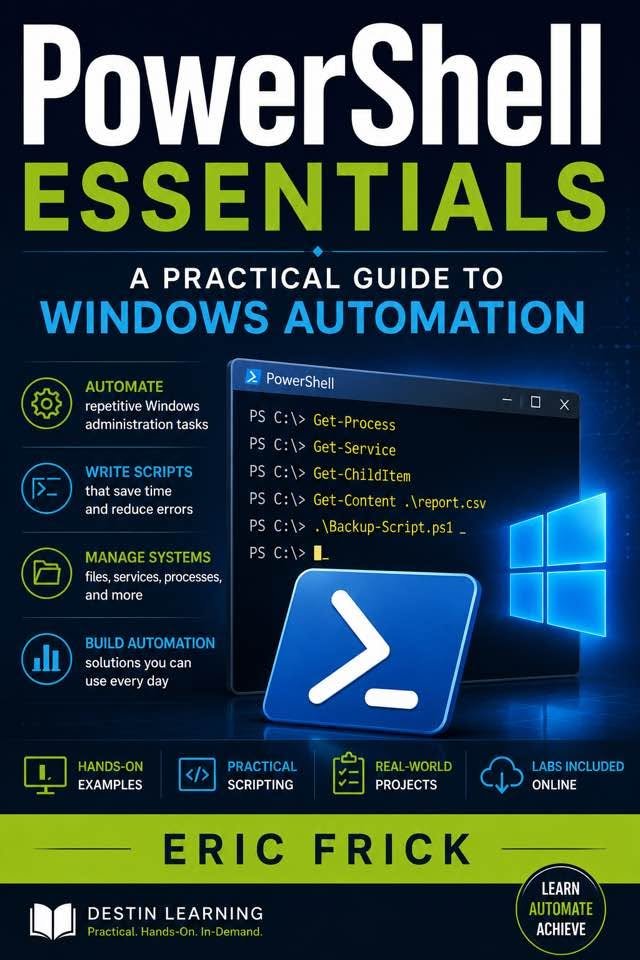
What you'll gain
You'll move beyond simple commands and learn to chain cmdlets together using PowerShell's object pipeline — filtering, sorting, and formatting live system data in a single expression.
By the end of the course, you'll have written parameterized scripts with error handling, a file backup tool, and a log-analysis automation — all ready to use or adapt in a real environment.
You'll package your own functions into a .psm1 module, learning how PowerShell's module system works so your code can be shared, versioned, and reused across projects or teams.

Who this course is for
You already manage Windows systems day to day but rely on manual steps and GUI tools. This course gives you the scripting skills to automate repetitive tasks and handle system information programmatically.
You understand programming fundamentals but haven't worked with shell scripting or Windows automation. You'll apply concepts like variables, loops, and functions directly to real system administration tasks in PowerShell.
You write application code but need stronger fluency with Windows environments and automation tooling. This course builds the PowerShell scripting foundation that DevOps and platform engineering roles expect.
What you'll learn
The course opens by grounding you in how PowerShell works — its cmdlet syntax, help system, and the object-based pipeline that sets it apart from other shells. From there, you build practical skills module by module: navigating the file system, working with variables and data structures, processing CSV and JSON, and writing control flow logic. The second half of the course shifts from concepts to application — writing and parameterizing scripts, handling errors, automating file and log management, and organizing your work into reusable modules. The final module brings everything together in a capstone project that mirrors the kind of automation toolkit you'd build on the job.
Module 1
Introduction to PowerShell
3 lessons
▾
Module 2
Core Cmdlet Syntax and the Help System
3 lessons
▾
Module 3
Working with the File System
3 lessons
▾
Module 4
Variables, Data Types, and Objects
3 lessons
▾
Module 5
The Pipeline: Filtering, Sorting, and Formatting
3 lessons
▾
Module 6
Processes, Environment, and System Information
3 lessons
▾
Module 7
Working with Text, CSV, and JSON Data
3 lessons
▾
Module 8
Control Flow and Scripting Fundamentals
3 lessons
▾
Module 9
Writing and Running PowerShell Scripts
3 lessons
▾
Module 10
Automation Projects
3 lessons
▾
Module 11
Modules and the PowerShell Ecosystem
3 lessons
▾
Module 12
PowerShell Careers and Final Project
3 lessons
▾
Learn by doing
Every module includes hands-on labs you complete directly in the PowerShell terminal on Windows. You'll work with real cmdlets like Get-Process, Import-Csv, and Select-String, use tools like Get-Member to inspect live objects, and write .ps1 and .psm1 files that produce actual output — not toy examples.
- Launch a PowerShell session and identify the installed PowerShell version using $PSVersionTable
- Run a handful of simple commands to confirm the session is working correctly
- Use Get-Command to find cmdlets related to a topic such as "process" or "service"
- Use Get-Help with the -Examples and -Full parameters to learn how a cmdlet works
- Pipe the output of a cmdlet into Get-Member to list its properties and methods
- Identify which property of an object you would use to filter or sort its output
- Use Get-ChildItem and Set-Location to explore and move through the file system
- Create a nested folder structure using New-Item
- Copy, move, and rename files using Copy-Item and Move-Item
- Use Get-Content and Set-Content to read a file and write a modified version to a new file
- Create variables of different data types and inspect their type using GetType()
- Pipe an object between two cmdlets and explain what data is passed along the pipeline
- Build an array of values and loop through it to print each item
- Build a hashtable representing a simple record and retrieve values by key
- Use Where-Object to filter a list of items based on a property value
- Sort the filtered results using Sort-Object on a chosen property
- Chain Select-Object, Sort-Object, and Format-Table into a single pipeline
- Export the formatted results to a text file using Out-File
- Use Get-Process to list running processes and identify the ones using the most CPU or memory
- Filter the process list with Where-Object to find a specific process by name
- List environment variables using the Env: drive and read a specific variable such as $env:PATH
- Use Get-PSDrive to list available PowerShell drives and explain what each one represents
- Use Select-String to search a log file for a specific pattern
- Use a regular expression to match a more specific pattern, such as an IP address or timestamp
- Import a CSV file with Import-Csv and filter its rows using Where-Object
- Convert the filtered results to JSON with ConvertTo-Json and save them to a file
- Write a script block that uses if/elseif/else to branch based on a variable's value
- Use a loop to process a list of items and apply conditional logic to each one
- Write a function that accepts a parameter and returns a computed value
- Call the function with several different inputs and verify the output is correct
- Write a .ps1 script that accepts a parameter and produces formatted output
- Run the script with different parameter values and confirm the output changes accordingly
- Wrap a risky operation (such as reading a file that may not exist) in a try/catch block
- Use the caught error's message to print a clear, human-readable error to the user
- Write a script that reads a log file and reports how many lines match a given pattern
- Extend the script to write its summary to a new output file with a timestamp in the filename
- Write a script that copies a set of files or folders to a backup location
- Add basic logging to the script so each run records what was backed up and when
- Move a set of functions written earlier in the course into a reusable .psm1 module file
- Import the module with Import-Module and call its functions from a separate script
- Design and build a small automation toolkit script (or module) that combines file management, filtering/reporting, and error handling from earlier modules
- Document the toolkit's usage, including its parameters and example commands, and verify it runs correctly end to end
Destin Learning
Destin Learning creates practical, project-driven courses for developers, IT professionals, and tech enthusiasts who want to build real skills — not just pass a certification exam.
Every course is built around hands-on labs, working code, and real-world tools. Our students learn by doing: writing programs, configuring systems, and solving problems in environments that mirror what they'll encounter on the job.
Our courses cover systems programming, Linux administration, cloud infrastructure, AI and machine learning, and foundational computer science — all taught with the same philosophy: understand it deeply, build it yourself, and know why it works.
Destin Learning · destinlearning.com
Start Automating Windows with PowerShell
Self-paced video lessons, 21 hands-on labs, and a final capstone project — contact us for pricing and enrollment details.
Enroll NowHave a coupon code? Redeem it here