Go from Zero Linux Experience to Command-Line Competence
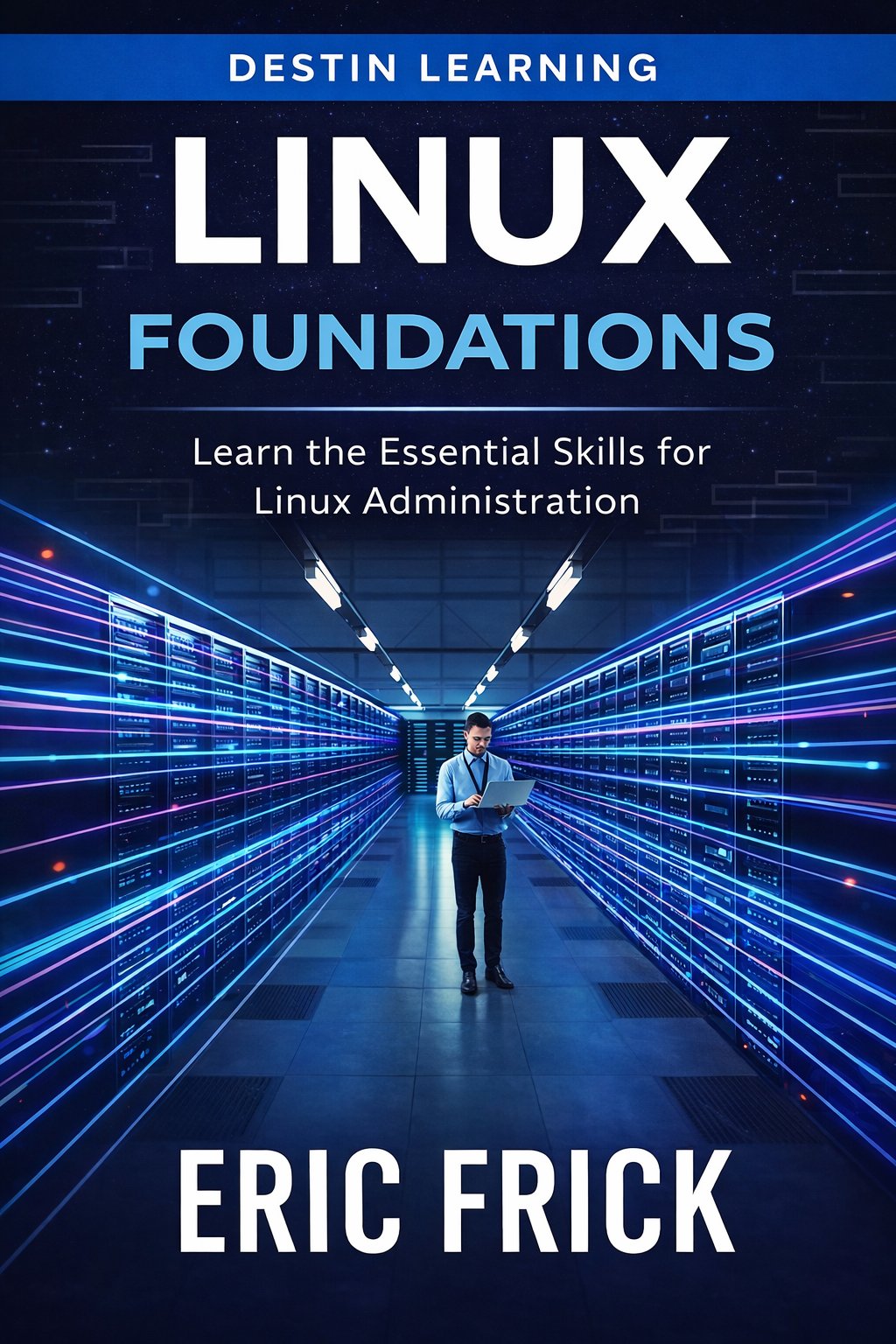
Master the Linux skills that power cloud, DevOps, and system administration — through 41 hands-on labs and real-world projects.
You'll finish this course able to navigate the Linux filesystem, manage users and permissions, write Bash scripts, and configure and secure a cloud server. The final project puts everything together: you'll provision, configure, and automate a real Linux server from scratch.
Have a coupon code? Redeem it here
What you'll gain
With 41 hands-on labs, you practice every skill as you learn it — not just read about it. By the end, you'll have real command-line experience, not just familiarity.
Most introductory Linux courses stop at the desktop. This one covers launching, securing, and hosting on cloud servers, so your skills apply directly to AWS, Azure, and beyond.
Beyond the technical skills, the course covers Linux career paths, certifications like Linux+ and RHCSA, and how to build your own learning roadmap for what comes next.
Build the Foundation Every Tech Role Requires
Who this course is for
You've written code but have little experience working in a Linux environment. You'll gain the command-line fluency that professional development, DevOps, and cloud roles expect from day one.
You're comfortable with Windows administration but need hands-on Linux skills to stay current. This course builds genuine proficiency in the tools and workflows Linux environments actually use.
You're targeting roles that require Linux as a foundation — but you don't have a structured place to start. This course takes you from the basics through cloud servers, scripting, and automation.
What you'll learn
The course opens by grounding you in what Linux is, how distributions differ, and how to get a working environment running — locally or in the cloud. From there, each module builds directly on the last: filesystem navigation leads into file management, which leads into text processing, permissions, and process control. By the midpoint, you're managing packages, storage, and networking. The final modules extend into cloud infrastructure, Bash scripting, and career planning, closing with a capstone project that ties every skill together.
Module 1
What Is Linux and Why It Matters
3 lessons
▾
Module 2
Linux Distributions
3 lessons
▾
Module 3
Installing Linux
2 lessons
▾
Module 4
Filesystem Navigation
3 lessons
▾
Module 5
File Management
3 lessons
▾
Module 6
Searching and Text Processing
3 lessons
▾
Module 7
Pipes, Redirection, and Streams
2 lessons
▾
Module 8
Users, Groups, and Permissions
3 lessons
▾
Module 9
Processes and Services
3 lessons
▾
Module 10
Package Management
2 lessons
▾
Module 11
Storage and Backup Basics
3 lessons
▾
Module 12
Networking Basics
3 lessons
▾
Module 13
Linux in the Cloud
3 lessons
▾
Module 14
Bash Scripting and Automation
2 lessons
▾
Module 15
Linux Careers and Certifications
3 lessons
▾
Module 16
Final Project
3 lessons
▾
Learn by doing
Every major concept is reinforced with a dedicated lab you complete in a real Linux terminal. You'll work with tools like grep, systemctl, rsync, ssh, and Bash — the same tools used in production environments — and finish with a cloud server you've built and secured yourself.
- Use commands such as cat /etc/os-release and lsb_release -a to identify a system's distribution and version
- Compare the output across two different distributions to understand how distro metadata is exposed
- Explore the default package manager and file layout differences between a Debian-based and a Red Hat-based distribution
- Document which distribution you would choose for a personal project and justify the choice
- Install Linux using VirtualBox, WSL, or a cloud VM based on your operating system and preference
- Boot into your Linux environment and confirm you can log in
- Run basic system commands to confirm your Linux environment is functioning correctly
- Update the system package index to confirm network connectivity
- Use pwd, ls, and cd to move through the filesystem and identify your current location
- List files with various ls flags to reveal permissions, sizes, and hidden files
- Use tree (or ls -R) to visualize a directory structure several levels deep
- Practice navigating between multiple directories using both absolute and relative paths
- Locate and inspect hidden configuration files in your home directory
- Construct absolute and relative paths to reach a target file from different starting locations
- Create a nested directory structure using mkdir -p
- Create multiple empty files using touch and confirm they appear with ls
- Copy and move files between directories using cp and mv
- Safely remove files and directories using rm, including the -r flag for directories
- Create and edit a text file using nano
- Save changes, exit nano, and verify the file's contents from the command line
- Use cat, less, head, and tail to inspect different parts of a large text file
- Compare the use cases for each viewing command and choose the right one for a given task
- Search a log file for specific patterns using grep, including case-insensitive and recursive searches
- Combine grep with other commands to filter output
- Use find to locate files by name, type, and modification time
- Use wc, sort, and uniq to count, sort, and deduplicate lines from a text file
- Chain multiple commands together using the pipe operator to filter and transform output
- Build a multi-stage pipeline that combines grep, sort, and wc
- Redirect command output to a file using > and append using >>
- Redirect stderr separately from stdout using 2>
- Use tee to simultaneously view command output and save it to a file
- Demonstrate the difference between stdout and stderr by triggering an intentional error
- Create a new user and add them to an existing group
- Use groups and id to confirm a user's group memberships
- Interpret a file's permission string and change it using both symbolic and numeric chmod modes
- Apply permissions to a directory and test the effect on a non-owner user
- Change file ownership using chown and chgrp
- Grant a user limited sudo privileges and verify the access works as intended
- Use ps to list running processes and identify resource-heavy processes with top or htop
- Interpret CPU and memory usage columns to diagnose a system under load
- Identify a process ID and terminate it using kill with an appropriate signal
- Demonstrate the difference between a graceful termination (SIGTERM) and a forced kill (SIGKILL)
- Start, stop, and check the status of a system service using systemctl
- Enable a service to start automatically on boot and verify the setting
- Update the package index and install a new application using apt
- Remove a package and its configuration files using apt
- Search for and install a package using dnf on a Red Hat-based system
- List installed packages and check for available updates
- Perform a full system update and review what packages were upgraded
- Inspect a repository source to understand where packages come from
- Use df to check available disk space across mounted filesystems
- Use du to identify which directories are consuming the most disk space
- Create a compressed archive of a directory using tar and gzip
- Extract an archive and verify the contents match the original files
- Use rsync to synchronize a directory to a backup location
- Perform an incremental backup and confirm only changed files were transferred
- Use ip addr and ip route to inspect network interfaces and routing on your system
- Identify which ports are open and listening using a tool such as ss or netstat
- Use ping to test reachability to a remote host and interpret the results
- Use curl to make an HTTP request and inspect the response headers and body
- Connect to a remote Linux system using ssh with a username and key or password
- Copy a file to or from a remote system using scp
- Launch a Linux virtual machine on a cloud provider such as AWS or Azure
- Connect to the instance over SSH using a key pair
- Configure a security group or firewall rule to allow SSH access from your IP address only
- Restrict and verify inbound access rules to reduce the server's attack surface
- Install and start a simple web server (such as nginx) on your cloud instance
- Open the appropriate port and confirm the web server is reachable from a browser
- Write a bash script that accepts input and prints formatted output
- Make the script executable and run it from the command line
- Use variables and conditionals in a script to branch based on user input or system state
- Test the script against multiple input scenarios to confirm correct behavior
- Write a loop that processes multiple files or directories automatically
- Combine variables, conditionals, and loops into a single automation script that performs a real administrative task
- Research three Linux-related job postings and identify the common skills and tools they require
- Map your current skills against a target role and identify gaps
- Create a personal learning roadmap listing the next skills and topics you plan to master
- Identify which certification, if any, aligns with your career goals
- Review the exam objectives for Linux+ or RHCSA and compare them against topics covered in this course
- Identify at least two areas that need additional practice before attempting a certification exam
- Provision a Linux server (local VM or cloud instance) and configure users, groups, and permissions to support a small team
- Install and configure at least one service, such as a web server, securing it with appropriate firewall or security group rules
- Write and run a bash automation script that performs a routine administrative task on the server, and document the completed project
Destin Learning
Destin Learning creates practical, project-driven courses for developers, IT professionals, and tech enthusiasts who want to build real skills — not just pass a certification exam.
Every course is built around hands-on labs, working code, and real-world tools. Our students learn by doing: writing programs, configuring systems, and solving problems in environments that mirror what they'll encounter on the job.
Our courses cover systems programming, Linux administration, cloud infrastructure, AI and machine learning, and foundational computer science — all taught with the same philosophy: understand it deeply, build it yourself, and know why it works.
Destin Learning · destinlearning.com
Start Building Real Linux Skills Today
Lifetime access to all 16 modules, 41 hands-on labs, and a final project — for a one-time cost of $29.00.
Have a coupon code? Redeem it here